Appearance
Streaming & Capture
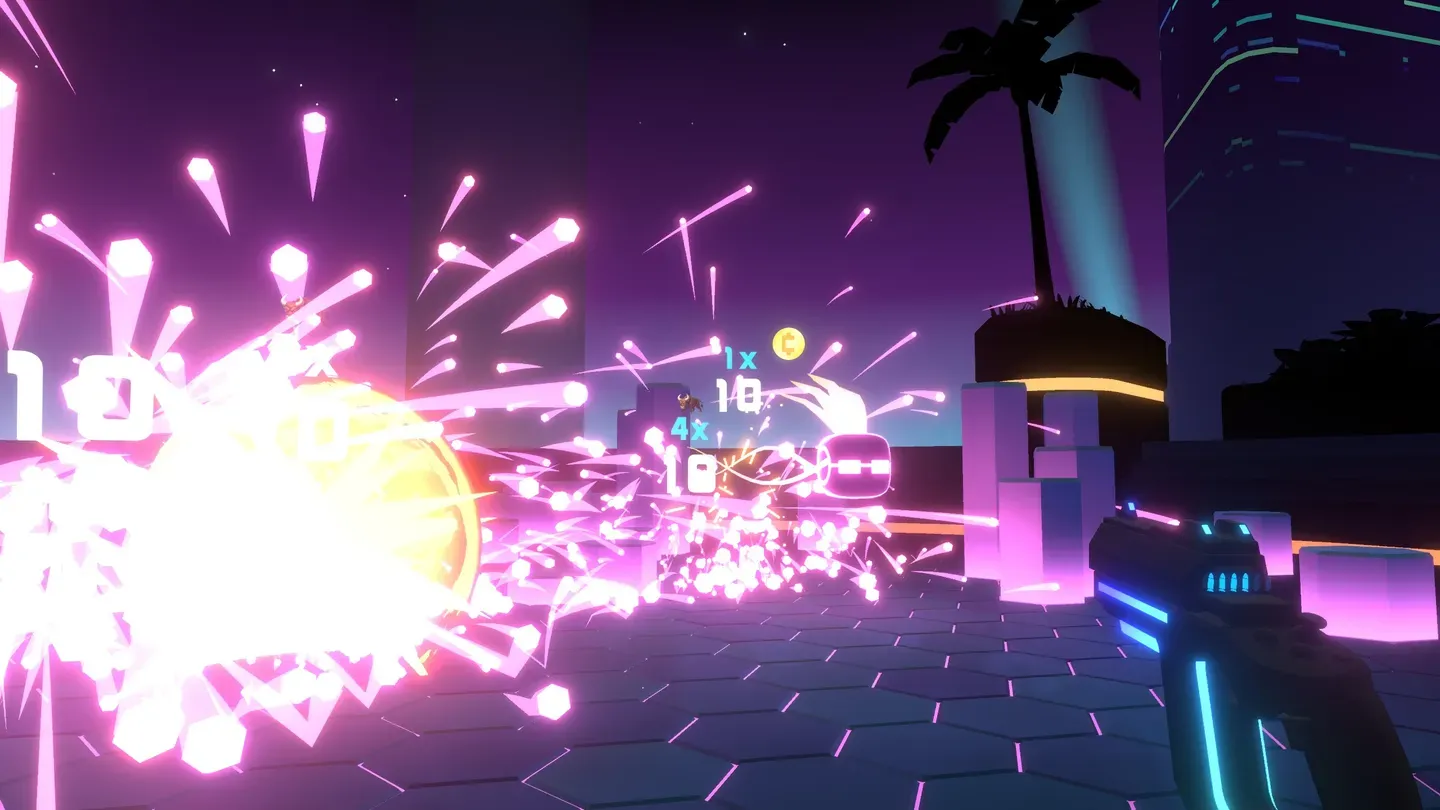
HYPER BULLET ships with a built-in toolkit for streamers and content creators: tidy your view with Streamer Mode, read your Twitch chat from your wrist mid-run, film yourself inside the game with LIV mixed-reality capture, and share clips on the official Discord.
Quick facts
- Where: every feature lives in the Options menu from the Main Menu.
- Streamer Mode: one toggle, found in Options. The game doesn't ship an in-game description of exactly what it changes.
- Twitch Chat: read-only, anonymous chat shown on your wrist. Added in Update 0.9.2.
- LIV Camera: mixed-reality Record or Stream with Selfie / First Person / Cinematic cameras. Added in the 1.0 launch.
- Discord: the community hub for clips, tips, and feedback — invite shown in-game.
- No score impact: these features are purely about sharing and presentation.
Note: None of these features affect your score or your run — they're purely about sharing and presentation. For the modes and leaderboards you'll be showing off, see Modes; for store, platform, and version details, see Game Info.
Streamer Mode
Streamer Mode is a single toggle in the Options menu, labelled exactly "Streamer Mode" in-game.
A note on what it does: The game ships the toggle but no on-screen description, tooltip, or help text explaining precisely what it changes — there's no
STREAMER_MODE_DESCstring anywhere in the game's text. As the name suggests, it's intended as a "go live safely" switch you flip before broadcasting, but the exact behavior isn't documented in-game, so treat any specific claim about what it cleans up as inferred rather than confirmed.
How to turn it on:
- From the Main Menu, open Options.
- Find Streamer Mode and switch it on.
- Start your stream as normal — your gameplay, score, and leaderboards all behave exactly the same.
Tip: It's a presentation-only toggle, so flip it on before you go live and leave it on. It costs you nothing in-game.
Twitch chat in VR
One of the best creator features in HYPER BULLET is that you never have to break flow to talk to your audience. Connect your channel and the game pulls in your Twitch chat so you can read it right on your wrist, mid-run, without lifting the headset. The feature arrived in Update 0.9.2 (5 Nov 2025), whose notes describe it as the "ability to view Twitch chat in-game via Options screen." Update 0.9.4 (4 Dec 2025) followed up with "Improvements to Twitch chat display."
In the game's own words:
"Add your Twitch channel. Read your chat by looking at your wrist."
The connection is read-only and anonymous — the game reads your public chat so you can see it, but it never posts, moderates, or messages on your behalf. Under the hood the game opens a real Twitch IRC connection (it connects to irc.chat.twitch.tv, requests CAP REQ :twitch.tv/tags twitch.tv/commands, and logs in anonymously as a justinfan guest). Anonymous login is exactly why it's read-only: the game itself notes that "Chat messages cannot be sent with anonymous login." Your channel just needs to be publicly accessible.
How to connect Twitch
- From the Main Menu, open the Options menu.
- Find the Twitch Channel field and select Enter Channel.
- Type in your Twitch channel name (this is your channel name, not your full URL).
- Switch on Enable Twitch Chat.
- When it connects, you'll see "Connected to channel [your name]". Now just glance at your wrist during a run to read what chat is saying.
| In-game label | What it's for |
|---|---|
| Twitch Channel | The field where you enter your channel name |
| Enter Channel | The placeholder prompt — select it to type your channel name in |
| Enable Twitch Chat | The on/off switch for reading chat on your wrist |
| Connected to channel {0} | Confirmation that chat is live and showing ({0} = your channel) |
| Left Channel {0} | Shown when you disconnect — chat stops showing |
If it won't connect
The game gives clear, friendly errors if something's off:
- "Twitch channel name is empty. Please set your channel name in the option menu." — You enabled chat without entering a channel. Go back and type your channel name.
- "Invalid Twitch channel name" — Double-check the spelling; enter just the channel name, not a link.
- "Failed to connect to Twitch channel {0}." — The game couldn't reach it. The full in-game message reads: "Failed to connect to Twitch channel {0}. Check the channel is correctly set in the options menu and that the channel is publically accesable" (typos and the missing terminal period are the game's own).
When you stop streaming and disconnect, you'll see "Left Channel [your name]" — chat simply stops showing on your wrist.
Tip: Read-only chat is perfect for shout-outs and reading hype while you play, but because the game only reads chat and logs in anonymously, keep your usual moderator or chat-command bot running on your channel — HYPER BULLET won't post or moderate for you.
LIV mixed-reality capture
 With LIV you can put yourself into shots like these — filming your real body inside the neon arena.
LIV is the headline creator feature, added in the 1.0 launch (21 May 2026) — the changelog lists it simply as the "LIV camera system. Easily stream and record your runs." It's a mixed-reality system that lets you film yourself inside the game — your real body, holding your real Tool, standing in the neon arena — instead of just capturing a flat first-person view.
In the game's own words, when the camera is off:
"RECORD YOUR GAME, OR STREAM ONLINE. TURN ON TO BEGIN"
And in the onboarding tip:
"You can share your gameplay with this device. Click Record or Stream to share. The device can be disabled in Options menu."
Modes: Off / Record / Stream
The LIV camera has three modes you select between:
| Mode | What it does |
|---|---|
| Off | The camera is fully disabled — no recording or streaming |
| Record | Captures clips you can keep and edit later |
| Stream | Sends straight to your connected platform |
You can leave it set up and just hit Go Live when you're ready.
Camera angles
LIV gives you three camera styles, so you can frame yourself however suits the clip:
| In-game name | Best for |
|---|---|
| Selfie | Facing yourself — great for reactions and face-cam style shots |
| First Person | Through-your-eyes gameplay, like the audience is in the headset with you |
| Cinematic | A fixed, dramatic angle that shows the full arena and your whole body |
Camera options
You can fine-tune the shot with a handful of controls:
| Option | What it does |
|---|---|
| Smoothing | Steadies the camera so movement looks less jittery |
| FOV | Field of view — how wide the shot is |
| Follow | How closely the camera tracks you |
| Distance | How far the camera sits from you |
| Flip | Mirrors the image |
| Game Volume | Balances the game audio in your capture |
Setting up LIV
LIV pairs with the LIV Hub app on your PC or device, the same way it does for other VR titles.
- From the Main Menu, open Options and turn the LIV Camera on (you'll see "TURN ON TO BEGIN").
- The game shows a pairing code prompt: "> PRESS LIV HUB BUTTON / AND ENTER THIS CODE:". Enter that code in your LIV Hub.
- Once you see "PAIRED SUCCESSFULLY," the game tells you to "CONNECT A STREAMING PLATFORM IN LIV HUB TO CONTINUE." Link your platform there.
- Choose your mode — Record or Stream — pick a camera (Selfie / First Person / Cinematic), and adjust the options above.
- Hit Go Live to stream, or Record to capture a clip. Saved clips land in your Gallery.
LIV camera states
While LIV is running you'll see short status labels appear: "Starting..." as it spins up, "Paused" if capture is held, "Saving" while it writes a clip, and "SAVED:" when a clip is stored. Your recordings live in the Gallery.
If LIV throws an error
LIV surfaces seven distinct error messages, all under the heading "Error":
| Error | In-game message (verbatim) |
|---|---|
| Generic | "SORRY, SOMETHING WENT WRONG" |
| Internal / no internet | "INTERNAL ERROR … FAILED TO REACH OUR BACKEND OR NO INTERNET CONNECTION… PLEASE TRY AGAIN LATER" |
| Tracking ID | "TRACKING ID ERROR … PLEASE OPEN LCK SETTINGS AND MAKE SURE YOUR TRACKING ID IS CORRECTLY COPIED FROM THE WEB PAGE: DASHBOARD.LIV.TV/DEV" |
| Service unavailable | "SERVICE UNAVAILABLE … FAILED TO REACH OUR BACKEND… PLEASE TRY AGAIN LATER" |
| Rate limit | "RATE LIMIT ERROR … TOO MANY REQUESTS WERE SENT TO OUR BACKEND … TRYING AGAIN IN A FEW SECONDS, PLEASE WAIT…" |
| Invalid argument | "INVALID ARGUMENT ERROR … AN INVALID ARGUMENT WAS PASSED TO AN LCK CORE METHOD … CHECK LOGS FOR MORE INFO" |
| Unknown streaming | "UNKNOWN STREAMING ERROR … CONNECT YOUR STREAMING PLATFORM IN LIV HUB AGAIN AND MAKE SURE YOUR SETTINGS ARE CORRECT." |
Tip: A Tracking ID error has a direct fix — open your LCK settings and make sure your tracking ID is copied correctly from dashboard.liv.tv/dev. Most of the others ("internal error," "service unavailable," "rate limit") just mean LIV couldn't reach its backend — wait a moment and try again. An unknown streaming error means re-linking your platform in LIV Hub.
Tip: When you're done capturing for a session, you can set the LIV mode back to Off, or disable the device in Options menu so it isn't running in the background.
The Discord community
Beyond the in-headset tools, the best place to share what you capture is the official Discord. The game invites you in directly:
"Join our Discord to get tips and help shape the game!"
HYPER BULLET is an Early Access, community-driven game — the developers genuinely use player feedback to steer where it goes next (nearly every update changelog ends with a nudge to come hang out on Discord). It's where players post clips, compare builds, chase high scores together, and talk strategy. If you've recorded a monster run with LIV, it's the natural place to drop it.

You'll find the Discord invite right from the game's menus and prompts. Bring your clips, your questions, and your record-breaking runs.
Sharing runs & climbing the leaderboards
All of these tools feed into the same goal: getting your runs seen and growing your name in the community. Here's how they fit together:
- Capture the run with LIV (Record) or your platform's normal capture.
- Read the room with Twitch chat on your wrist so you can hype the big combos as they land.
- Keep your view tidy with Streamer Mode.
- Post the highlight to Discord, and the run itself to the in-game leaderboards.
HYPER BULLET tracks both Global and Friends leaderboards, plus a separate Endless board. A great clip plus a high placement is the one-two punch that gets people watching — see Modes for how the leaderboards and Endless Mode work.
Heads up: Scores only post to the leaderboards when you're online and on the latest version. If you're offline, the game warns you "You're currently offline and your scores won't be posted to leaderboards." If you're behind on updates, it warns "You don't have the latest version of Hyper Bullet. Scores will not be posted to the leaderboards." Note too that "Leaderboards may be reset for major balance changes." Worth checking before a big leaderboard push on stream.
Quick reference
| Feature | What it does | Where to find it |
|---|---|---|
| Streamer Mode | A presentation toggle (behavior not documented in-game) | Options |
| Twitch Chat | Read-only chat on your wrist, mid-run | Options → Twitch Channel |
| LIV Camera | Film yourself in mixed reality; Off / Record / Stream | Options → LIV Camera (pairs with LIV Hub) |
| Discord | Community hub for clips, tips, and feedback | In-game invite prompt |
See also
- Modes — leaderboards, Endless Mode, and the run types you'll be showing off
- Game Info — store, platform, price, and version details
- Tools — the Pistol, SMG, and Shotgun you'll be wielding on stream
- Mods — the build system behind those big score explosions
Ready to show off a run? Line up your build on the Modes page, double-check your platform on Game Info, then hit Go Live.